Votre choix s’applique sur cette page, mais le navigateur n’a pas permis de l’enregistrer. Nous pourrons vous le demander à nouveau lors de votre prochaine visite.
▷Vidéo YouTube
Pour lire cette vidéo, activez les médias externes dans les paramètres des cookies.
If you are reading this article it means that
you've been added to a WhatsApp group where you can use a CogniVis.AI
bot, that will answer questions about your organization. In this tutorial, we will show you how to start testing your bot with
ease.
How to start testing
At this point of the implementation there should be a
spreadsheet with some basic, publicly available data about your
organization members
added to the bot.
Start by asking a question about yourself, for example:
Message:@CogniVis.AI can you write an
exciting introduction for John Doe?
The
key thing you need to remember is to correctly tag the bot
in your messages.
Input the @ character, start typing the bot's name, and
select it from the list of suggestions.
When tagged correctly, the name of the bot should be highlighted in
blue.
After you send the message, the
bot will react with an 👀 eyes emoji - this is an
indication that CogniVis is reading your message and will provide an
answer shortly.
Other example questions you could ask the bot (depending on the data you
provided):
Message:@CogniVis.AI do we have any
members from the tech industry?
Message:@CogniVis.AI what is the LinkedIn profile of Jane Doe?
Message:@CogniVis.AI who is the chair of finance in our organization?
Things to keep in mind
Since WhatsApp is just a messaging platform,
there are some limitations to what you can do with your
bot.
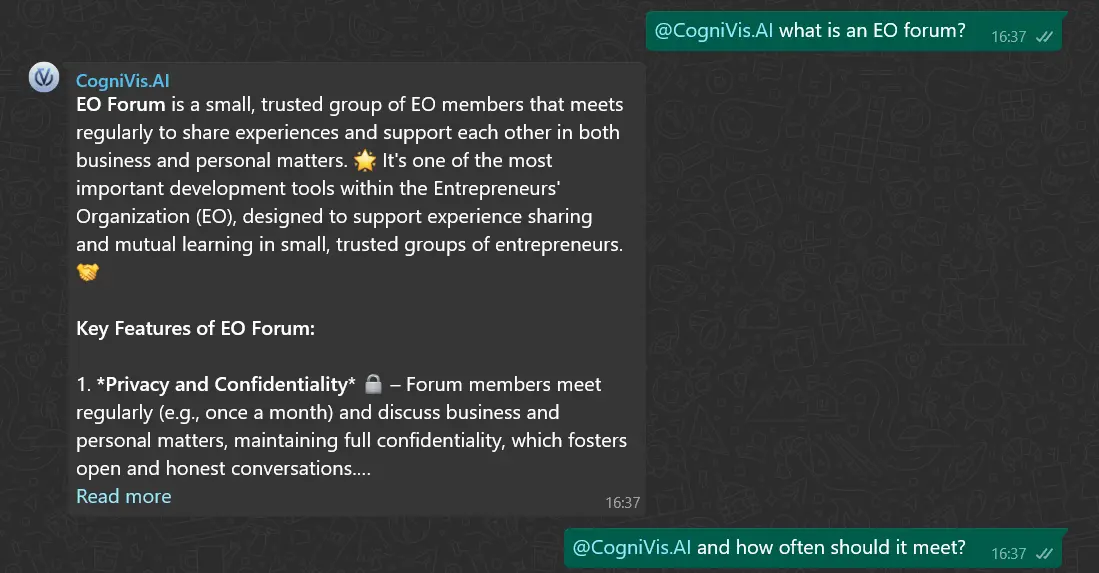
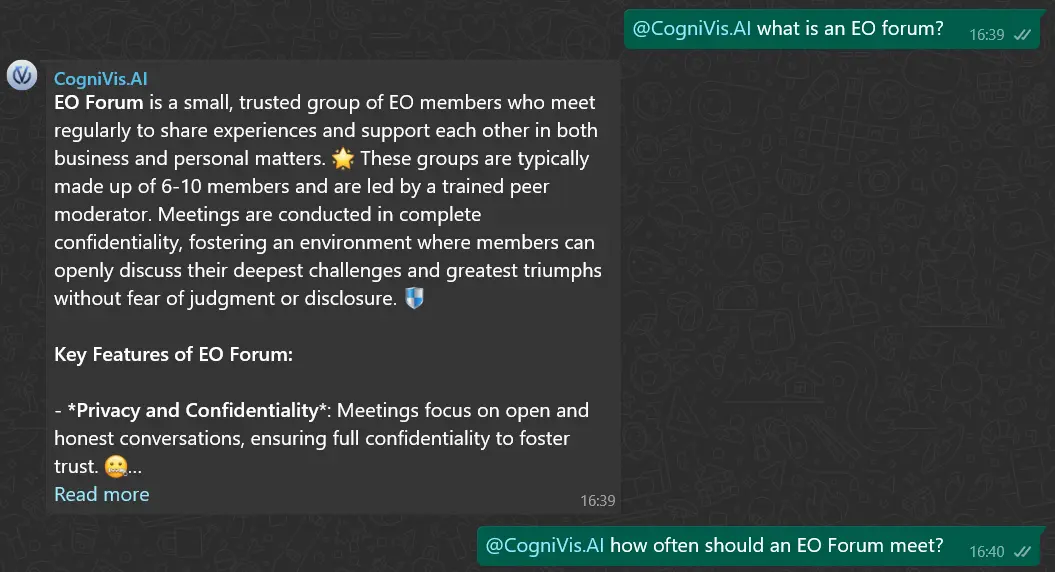
CogniVis doesn't see previous WhatsApp messages
Due to privacy reasons, CogniVis.AI can't see any messages that were sent
before you tagged the bot. This means that if you want to ask a question,
you need to include the full context in the message in which you tag
the bot.
Bad context example:
Good context example:
You need to tag @CogniVis.AI in every question
As explained in the previous section, you need to tag the bot in every question you ask. If you don't tag the bot, it won't be able to provide an answer.
Also - editing the message after sending it will not work, so make sure to tag the bot correctly before sending the message.
CogniVis can only rely on data you provide to it
Most implementations of CogniVis start with a very basic source setup that
includes:
A "Members" spreadsheet with some publicly available
data about your organization members - so that you can start testing the
bot quickly
A Google Drive folder, so that you are able to easily
add more data to the bot
CogniVis won't know anything outside of this data, so
don't expect it to know anything about your organization that you
haven't provided to it.
Many questions at once might confuse the bot
If you ask the bot multiple questions at once, it might get confused and
not provide an answer to any of them.
This is a limitation related strictly to WhatsApp. When you ask the bot a
question, it needs to send it out of WhatsApp, process it, and then send
the answer back to WhatsApp. WhatsApp API takes a few seconds to send the
message, so
if you ask another question, before the previous one has been answered
- it may cause a lack of response.
How to add new sources
If you want to add more data to the bot, you can do it by
adding new sources to the Google Drive folder.
The bot will automatically update its knowledge base with
the new data you provide within 10 minutes.
You can add more spreadsheets, PDFs, or other files that
you want the bot to know about.
The link to the Google Drive folder for your organization should be
provided in the WhatsApp group where you are testing the bot.
Author of hundreds of articles on AI, programming, UI/UX design,
business, marketing and productivity. In the past, an educator working
with troubled youth in orphanages and correctional facilities.