Votre choix s’applique sur cette page, mais le navigateur n’a pas permis de l’enregistrer. Nous pourrons vous le demander à nouveau lors de votre prochaine visite.
▷Vidéo YouTube
Pour lire cette vidéo, activez les médias externes dans les paramètres des cookies.
At the end, I would like to give you some useful tips and tricks.
Keyboard shortcuts
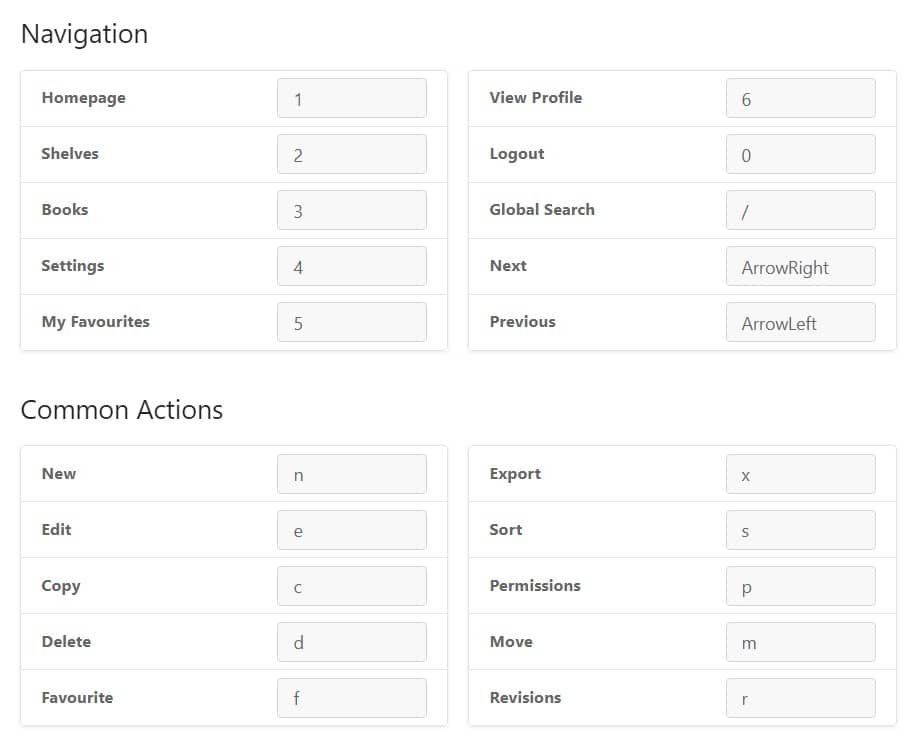
I can't imagine daily work in any tool without using keyboard shortcuts. CogniVis Docs, of course,
also has them:
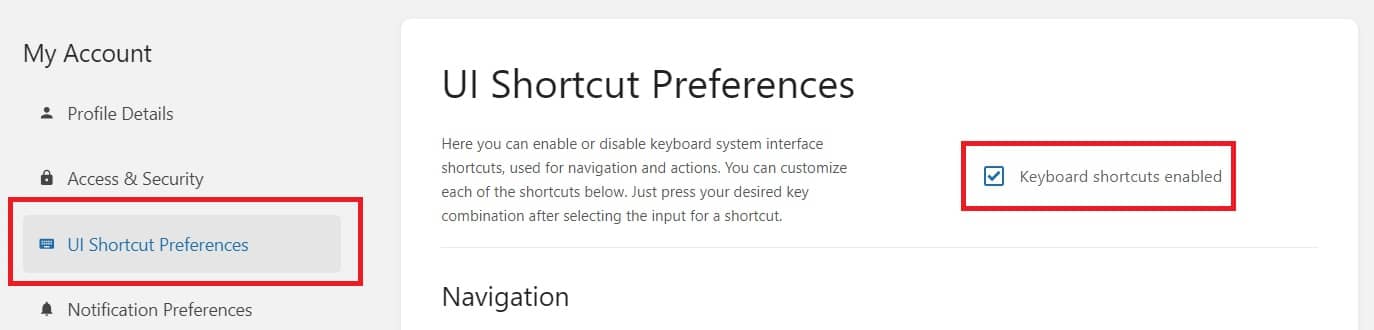
If they don't work for you, it may mean that they are disabled by default. Then click in the upper
right corner on
your avatar, select "My account", and then "UI Shortcut Preferences". There, check
"Keyboard shortcuts enabled".
Notifications
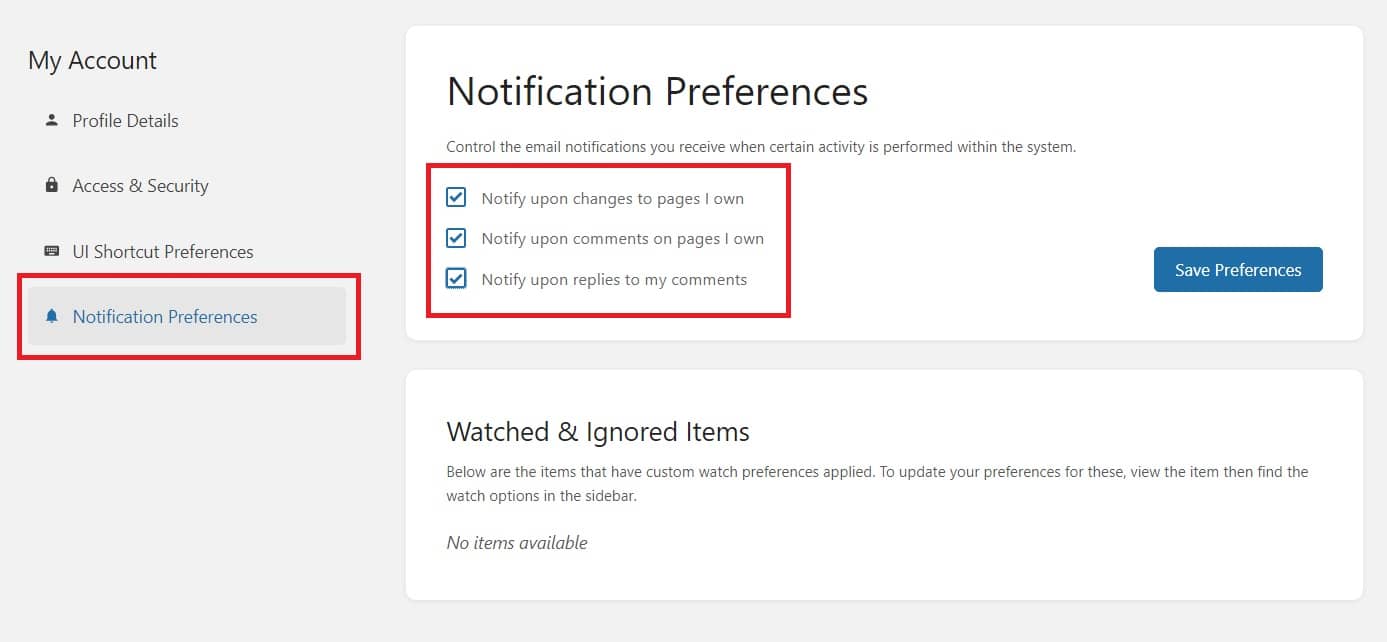
Since we are already in the account settings, it's worth mentioning notifications. From the navigation
on the left,
select "Notification preferences" and see the available options:
It is advisable for every team member to have these options selected in order to monitor changes
especially on
pages they created themselves. This will help maintain order and prevent unwanted changes in content.
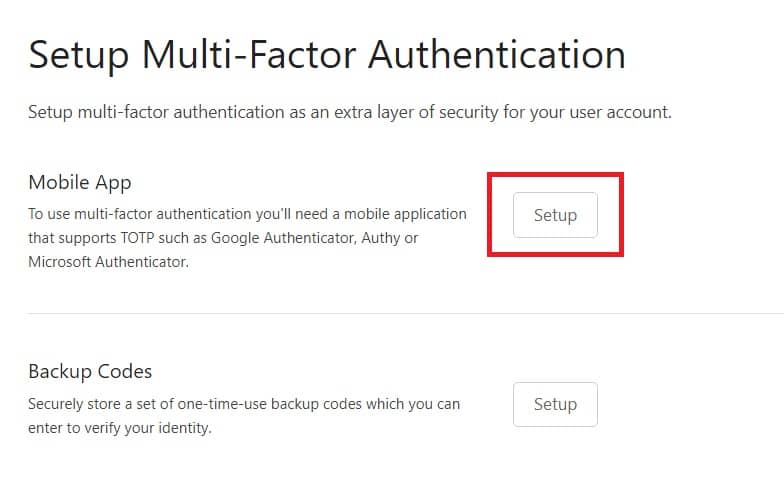
Multi-factor authentication
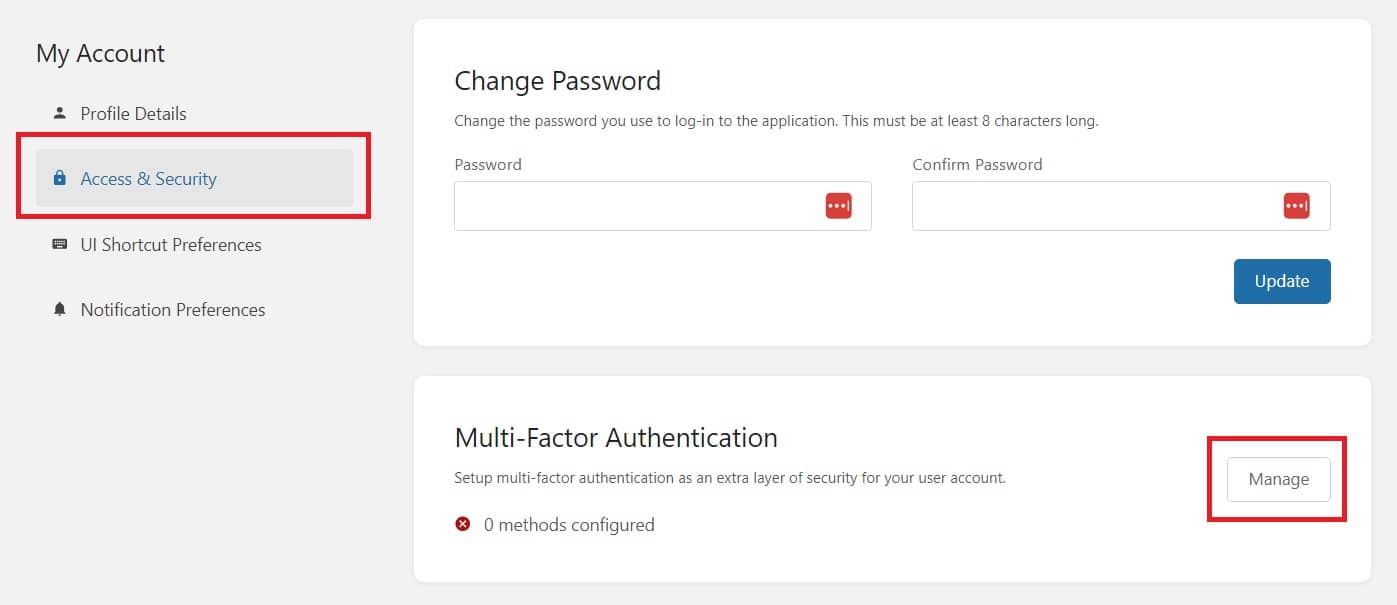
If you want to increase security, you can enable multi-factor authentication. In the navigation on the
left side,
select "Access and security", and then click "Manage":
Then you need to configure authentication through the selected mobile app by clicking
"Setup" in
the "Mobile app" section
Sorting books
In each book, on the right-hand navigation, you will find the "Sort" option (you can
also press
the "S" key if you have enabled keyboard shortcuts).
Sorting allows you to arrange chapters and pages in books in your preferred order.
Customization
By selecting "Settings" in the upper right corner, and then clicking
"Customization" you can change the look of the entire application, change its name, logo, switch
display mode from light to dark, or set many other options that will tailor CogniVis Docs to your preferences.
Mobile app
You can install CogniVis Docs as a mobile app (in the form of a so-called PWA) on your Android or IOS
phone.
IOS
Open Safari: Launch the Safari browser on your iPhone.
Go to your CogniVis Docs instance website: Enter the URL where your instance is available that
you want to "install".
Tap the share icon: On the bottom bar in Safari, you will find a share icon that looks like a
rectangle with an arrow popping out.
Choose 'Add to Home Screen': In the share menu, scroll down to the "Add to Home Screen" option
and tap it.
Name the app: You can now change the name of the app if you want, and then tap "Add" in the upper
right corner.
Completion: The PWA app will appear on your home screen as an icon, just like a normal app. You
can open it by tapping the icon, and it will behave similarly to a native app.
Android
Open Chrome browser: On your Android phone, launch the Google Chrome app.
Go to your CogniVis Docs instance website: Enter the URL where your instance is available that
you want to "install".
Add the app to the home screen:
Chrome may automatically display a prompt asking if you want to add the app to the home
screen. If so,
simply tap "Add" or "Install".
If the prompt does not appear, you can manually add the app: Tap the three dots in the upper
right corner to
open the Chrome menu, then select "Add to home screen" or "Install app".
Confirm installation: A dialog box will appear where you can change the name of the app. After
entering or confirming the name, tap "Add" or "Install". The app will be added to the home screen of your
device.
Using the app: After adding, the PWA app icon will appear on your home screen. You can now use
the app just like any other installed app on your device. The app will run in full-screen mode, giving the
impression of a native mobile app.
Updates: PWA apps are automatically updated by the server from which they were downloaded, so
you don't need to manually update the app through the Google Play Store or other sources.
Mobile app
You can also install the desktop application. Just click the installation icon in the search bar in
Google Chrome.
Author of hundreds of articles on AI, programming, UI/UX design,
business, marketing and productivity. In the past, an educator working
with troubled youth in orphanages and correctional facilities.