Votre choix s’applique sur cette page, mais le navigateur n’a pas permis de l’enregistrer. Nous pourrons vous le demander à nouveau lors de votre prochaine visite.
▷Vidéo YouTube
Pour lire cette vidéo, activez les médias externes dans les paramètres des cookies.
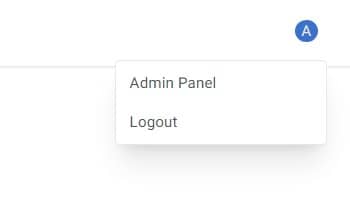
By clicking on the user profile button in the upper right corner, you will display a
dropdown menu
from which you can select the "Admin Panel" option.
You will be taken to the admin panel, where the first view you will see are the data sources that
"feed" your
artificial intelligence. These sources are called "Connectors".
Data sources can be various, for example:
knowledge bases like CogniVis Docs
text files, PDF files, etc.
instant messengers such as Slack or Microsoft Teams
mailboxes like Gmail
online drives such as Google Drive or Microsoft Sharepoint
and many others...
So, as you can see, you can have many of these sources, but above all, your knowledge base
should be connected
there,
which is CogniVis Docs (if you don't see it there, write to us at support@cognivis.ai).
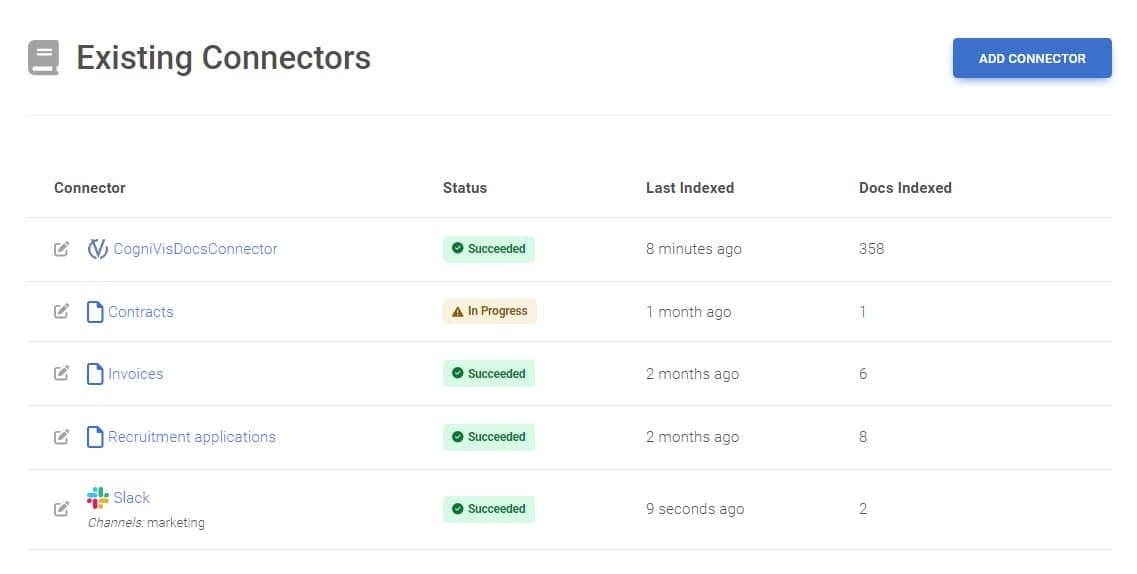
This table shows us the indexing status of data sources. Since data in sources is constantly changing,
the AI
system must continuously save and catalog it to always have access to its current version. This process is called
indexing.
Here we see columns such as "Status" (determines the stage at which indexing is
currently),
date of the last indexing, or the number of documents in a given source that have
been indexed.
In CogniVis, indexing happens automatically. The process usually runs once every few/dozen minutes. It can also be
forced manually if necessary.
If you make any changes to the sources, for example update the content in the CogniVis Docs
knowledge base, the system needs several minutes to index them. So don't be surprised if a moment after updating
the
data in the knowledge base, AI does not have access to them - it simply has to wait a while for re-indexing.
Adding a new data source
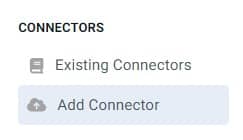
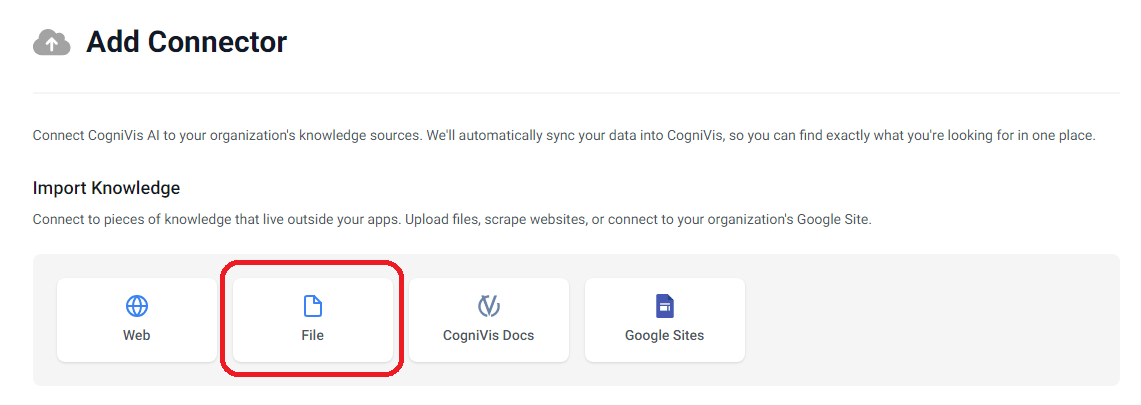
In the navigation on the left side, click "Add Connector".
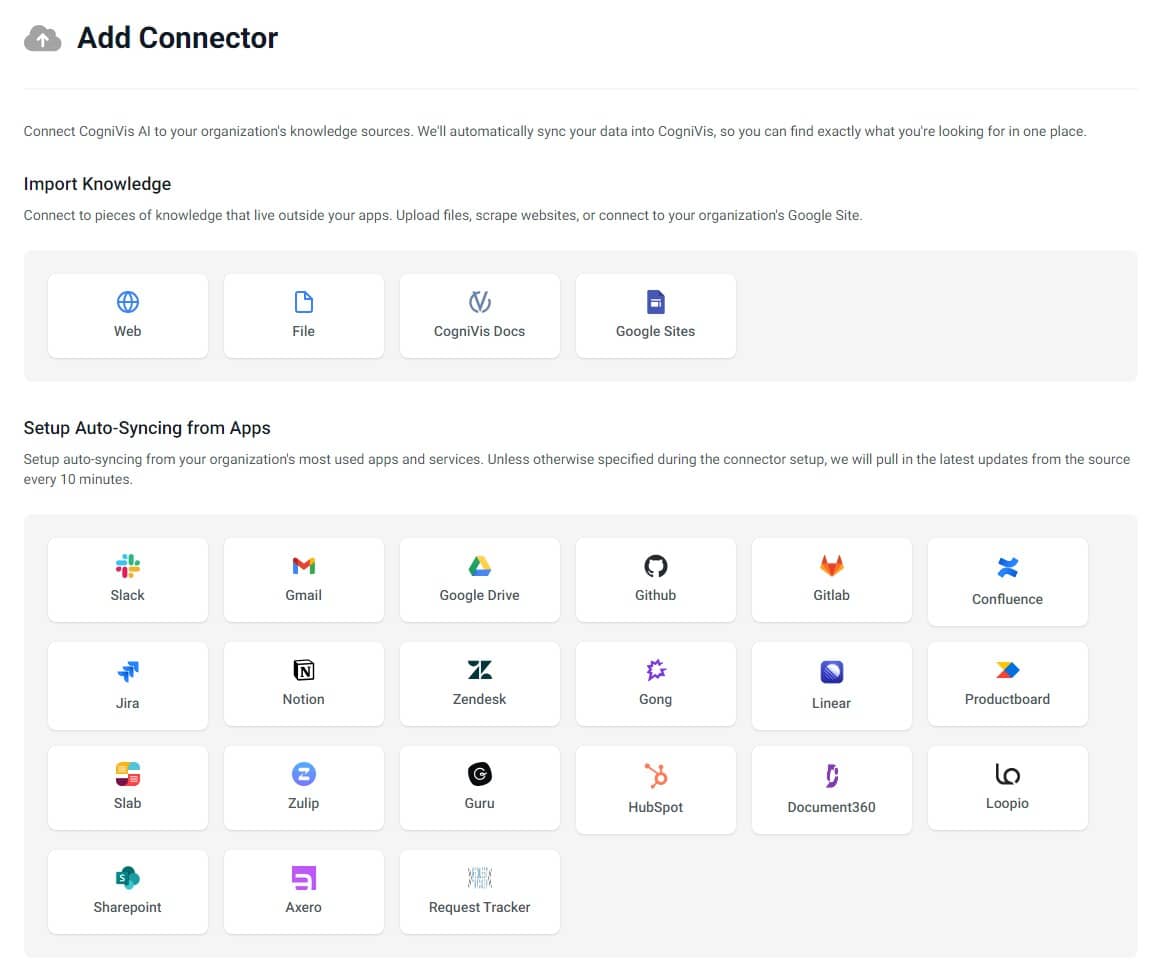
You will be taken to a page with a list of possible connectors to add. As you can see, there are many
and new ones
are added frequently.
Let's add a test data source. Choose, for example, the "File" connector.
Now let's add a file. I will add a pdf file with a test agreement. Also remember to add a name for
this connector
in the field at the top.
After clicking "Upload", a success message should appear. Now when you go back to the
"Existing connectors" page, you should see your file added to the list of data sources. Initially,
it may have the status "Scheduled", but after a while, it should change to "In
progress", and then "Succeeded". When that happens, you can start talking to that file.
When your new connector is ready, in the top navigation click the "AI Chat" link.
Next to the
message sending field, click the "Filter" button, then select "Source", and
further "File".
Ask a question related to the added file. Now with the help of AI, you can talk to this file as if it
were a
person!
Note that if you do not select filtering, the system will use all connected connectors by default - including the
file we just added. Filtering is therefore an additional, optional step that provides us with greater precision,
but is not necessary.
Author of hundreds of articles on AI, programming, UI/UX design,
business, marketing and productivity. In the past, an educator working
with troubled youth in orphanages and correctional facilities.