Docs Book a call
CogniVis AI

  • !Font Awesome Free v7.0.1 by @fontawesome - https://fontawesome.com License - https://fontawesome.com/license/free Copyright 2025 Fonticons, Inc.
    • Übersicht
    • Eigenes LLM hinzufügen
    • Quelle hinzufügen
    • Datensätze definieren
    • Generatoren
  • !Font Awesome Free v7.0.1 by @fontawesome - https://fontawesome.com License - https://fontawesome.com/license/free Copyright 2025 Fonticons, Inc.
    • Überblick
    • Berechtigungen verstehen
    • Rollen definieren
    • Wie man einen Benutzer hinzufügt
  • !Font Awesome Free v7.0.1 by @fontawesome - https://fontawesome.com License - https://fontawesome.com/license/free Copyright 2025 Fonticons, Inc.
    • Überblick
    • Zugang verwalten
    • Inhalte organisieren
    • Anhänge hinzufügen
    • Tastenkürzel verwenden
    • Vorlagen verwenden
    • Inhalte einbetten
    • Mit KI chatten
    • KI befragen
    • KI bearbeiten
    • Mit KI suchen
    • KI-Cover generieren
    • In CV-Dokumente exportieren
    • Automatisierte Berichte erstellen
    • Erweiterungsfeedback sammeln
  • !Font Awesome Free v7.0.1 by @fontawesome - https://fontawesome.com License - https://fontawesome.com/license/free Copyright 2025 Fonticons, Inc.
    • Airtable
    • ClickUp
    • CogniVis Dokumentation
    • Confluence
    • Discourse
    • Document360
    • Dropbox
    • Datei
    • GitHub
    • GitLab
    • Gmail
    • Google Calendar
    • Google Drive
    • Google Sites
    • Google Storage
    • Guru
    • HubSpot
    • Jira
    • Linear
    • Loopio
    • MediaWiki
    • Notion
    • Oracle Storage
    • ProductBoard
    • R2
    • Request Tracker
    • S3
    • Salesforce
    • SharePoint
    • Slab
    • Slack
    • Teams
    • Web
    • Wikipedia
    • Zendesk
    • Zulip
  • !Font Awesome Free v7.0.1 by @fontawesome - https://fontawesome.com License - https://fontawesome.com/license/free Copyright 2025 Fonticons, Inc.
    • Übersicht
    • Antwortstil definieren
    • LLM wählen
    • Wissen definieren
    • Suche verbessern
    • Zeitzone auswählen
    • Startnachrichten hinzufügen
    • ProfitRoom-Tool
    • Bildgenerator
    • Code-Interpretationstool
    • Zugang auswählen
  • !Font Awesome Free v7.0.1 by @fontawesome - https://fontawesome.com License - https://fontawesome.com/license/free Copyright 2025 Fonticons, Inc.
    • Übersicht
  • !Font Awesome Free v7.0.1 by @fontawesome - https://fontawesome.com License - https://fontawesome.com/license/free Copyright 2025 Fonticons, Inc.
    • Übersicht
    • Grundlegende Einrichtung
    • Sprachen auswählen
    • Layout definieren
    • Verhalten definieren
  • !Font Awesome Free v7.0.1 by @fontawesome - https://fontawesome.com License - https://fontawesome.com/license/free Copyright 2025 Fonticons, Inc.
  • !Font Awesome Free v7.0.1 by @fontawesome - https://fontawesome.com License - https://fontawesome.com/license/free Copyright 2025 Fonticons, Inc.
  • !Font Awesome Free v7.0.1 by @fontawesome - https://fontawesome.com License - https://fontawesome.com/license/free Copyright 2025 Fonticons, Inc.
  • !Font Awesome Free v7.0.1 by @fontawesome - https://fontawesome.com License - https://fontawesome.com/license/free Copyright 2025 Fonticons, Inc.
    • Grundkonfiguration
    • Installation
    • Booking
    • Google Maps
    • Kurzurlaub
    • Travelist
    • Tripadvisor
  • outlook
    • Grundkonfiguration
    • Installation
    • Loslegen
  • Thunderbird
    • Grundkonfiguration
    • Installation
    • Loslegen
  • !Font Awesome Free v7.0.1 by @fontawesome - https://fontawesome.com License - https://fontawesome.com/license/free Copyright 2025 Fonticons, Inc.
    • Übersicht
  • !Font Awesome Free v7.0.1 by @fontawesome - https://fontawesome.com License - https://fontawesome.com/license/free Copyright 2025 Fonticons, Inc.
  • !Font Awesome Free v7.0.1 by @fontawesome - https://fontawesome.com License - https://fontawesome.com/license/free Copyright 2025 Fonticons, Inc.
    • Einfache Erinnerungen
    • Seitenänderungen verfolgen
    • Google Analytics verfolgen
    • Search Console verfolgen
    • Benutzerdefinierte Quellen
    • Google Analytics
    • Search Console
    • Chat-Widget
    • Slack-Bot
    • WhatsApp-Bot

Introduction

What is CogniVis?

Cognivis is a software tool designed for advanced image and video analysis. Utilizing artificial intelligence and computer vision, it helps businesses automate the recognition and categorization of visual data. This tool can be beneficial for sectors needing efficient and accurate visual data processing, such as security, retail, and manufacturing.

What is CogniVis AI?

CogniVis AI is a platform that enables you to pull data from different sources and combine them with each other to create practically useful AI tools. Sources may include your internal company knowledgebase and a variety of most popular business apps like GitHub, Jira, Slack, and more.

This enables you to easily create AI chatbot assistants (internal), custom generators and even embeddable AI chat widgets trained on your data.

How CogniVis AI works with CogniVis?

The Github Connector picks up all of the Pull Requests and Issues in a specified repository.

  • It will index both Open and Closed PRs. This includes the Title and Summary.
  • It will index Issues and comments both Open and Closed.
  • Includes certain other metadata such as the URL, creator, etc.

Configuration

Generate a Personal Access Token

To connect CogniVis AI with GitLab, you need to generate a Personal Access Token in GitLab. This token will be used to authenticate the connection between CogniVis AI and GitLab. See the detailed instructions in the GitLab Personal Access Tokens guide.

Sign In

Sign into your GitLab account.

Navigate to Token Settings

Go to your Profile Settings. Select Access Tokens in the left sidebar.

Open token generation page

Generate a new token

Click on Add new token button

  • Name your token something like "CogniVis Connector".
  • Set the expiration date. Remember to generate a new token when this one expires.
  • Choose the desired scopes for your project. You can find additional details here.

Add the connector to CogniVis

Navigate to CogniVis Connectors

In CogniVis, go to Admin Panel, then in the sidebar choose Add connector. You will find the GitLab connector setup page there.

Open GitLab connector setup page

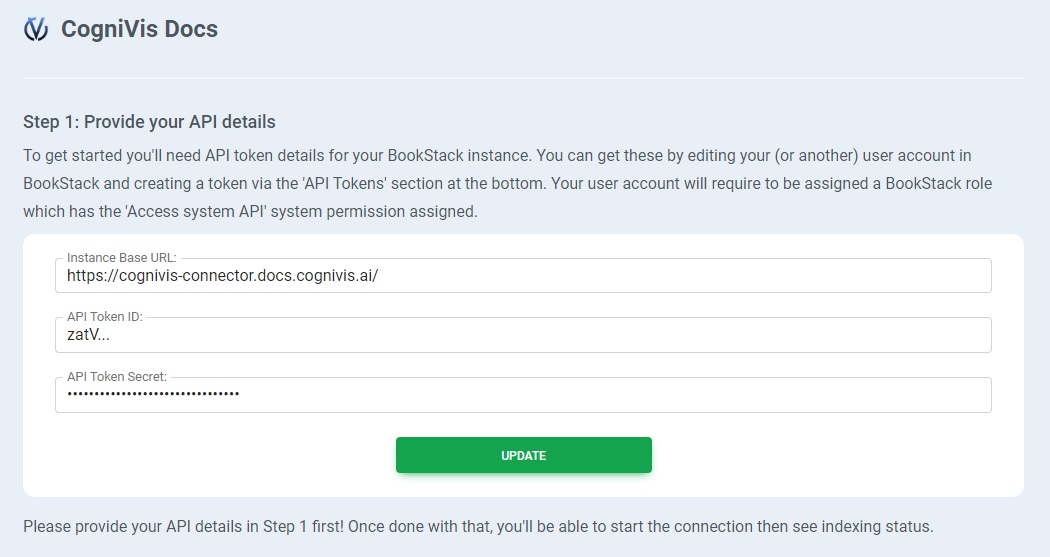
Add your GitHub token

Add your GitHub token & save it.
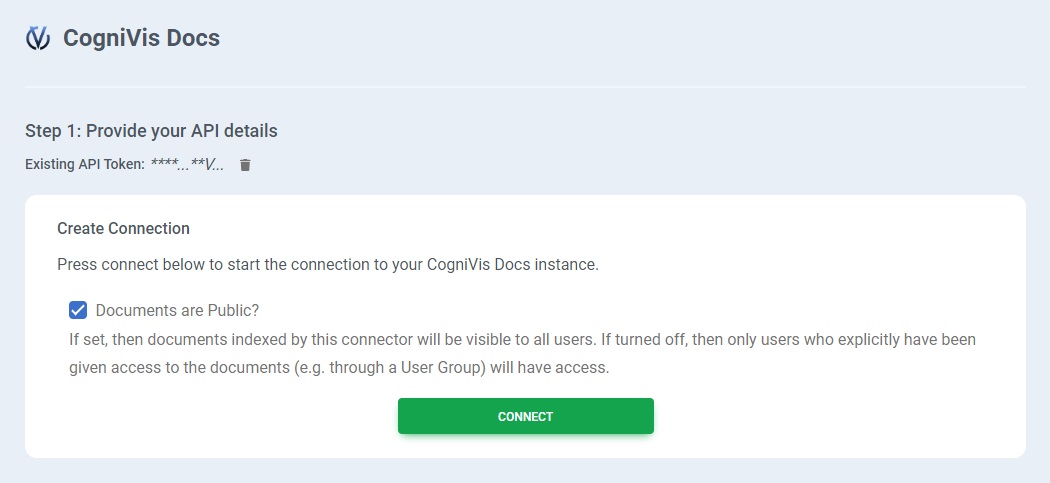
Specify the repo

Specify the repositories you want to Index by inputing the owner and repository names.

Free trial

If you are interested in creating your own automations and workflows with artificial intelligence based on your data, you can request a free trial of our solution. Please book a demo with us to get started.

book a demo

On-premise

Enterprise organizations can choose to deploy this connector on-premise. On-premise deployment provides additional security and privacy, it means that the connector will be hosted on your own servers which you can control and manage.

This option is suitable for organizations that have strict data privacy and security requirements, want to integrate with their existing infrastructure, or need to comply with specific local regulations.

Contact our team & learn about options of deploying this connector on premise.

book a demo learn more about on-premise ai

Use cases

Check out potential benefits and use cases for this connector.

Title

description

Title

description

Title

description

Title

description

Title

description

Title

description

Title

description

Title

description

Title

description

Title

description

  • Introduction
  • Configuration
    • Authorization
    • Indexing
  • Free trial
  • On premise
  • Use cases

CogniVis - AI knowledge base software CogniVis AI

Experten für KI, die Lösungen für die Hotellerie, private Arztpraxen und viele weitere Bereiche entwickeln.

Finde uns

LinkedIn

  • Dawid Adach
  • Michał Szymański

YouTube-Kanal
Subscribe 52K

Mehr

KI-Schulungen für Teams

Danksagungen

Datenschutzrichtlinie

Contact

Termin vereinbaren

Technischer Support


CogniVis

Kijowska 7/49

03-738 Warschau

support@cognivis.ai

© 2025 Copyright: CogniVis